Product
We don’t sell AI credits. Bring your own.
MPP Studio has a built-in MCP server, in the Mac and iPad apps and on the web. Turn it on, and the AI agent you already pay for can read and edit the plan you have open. No AI subscription from us, and no model of our own.
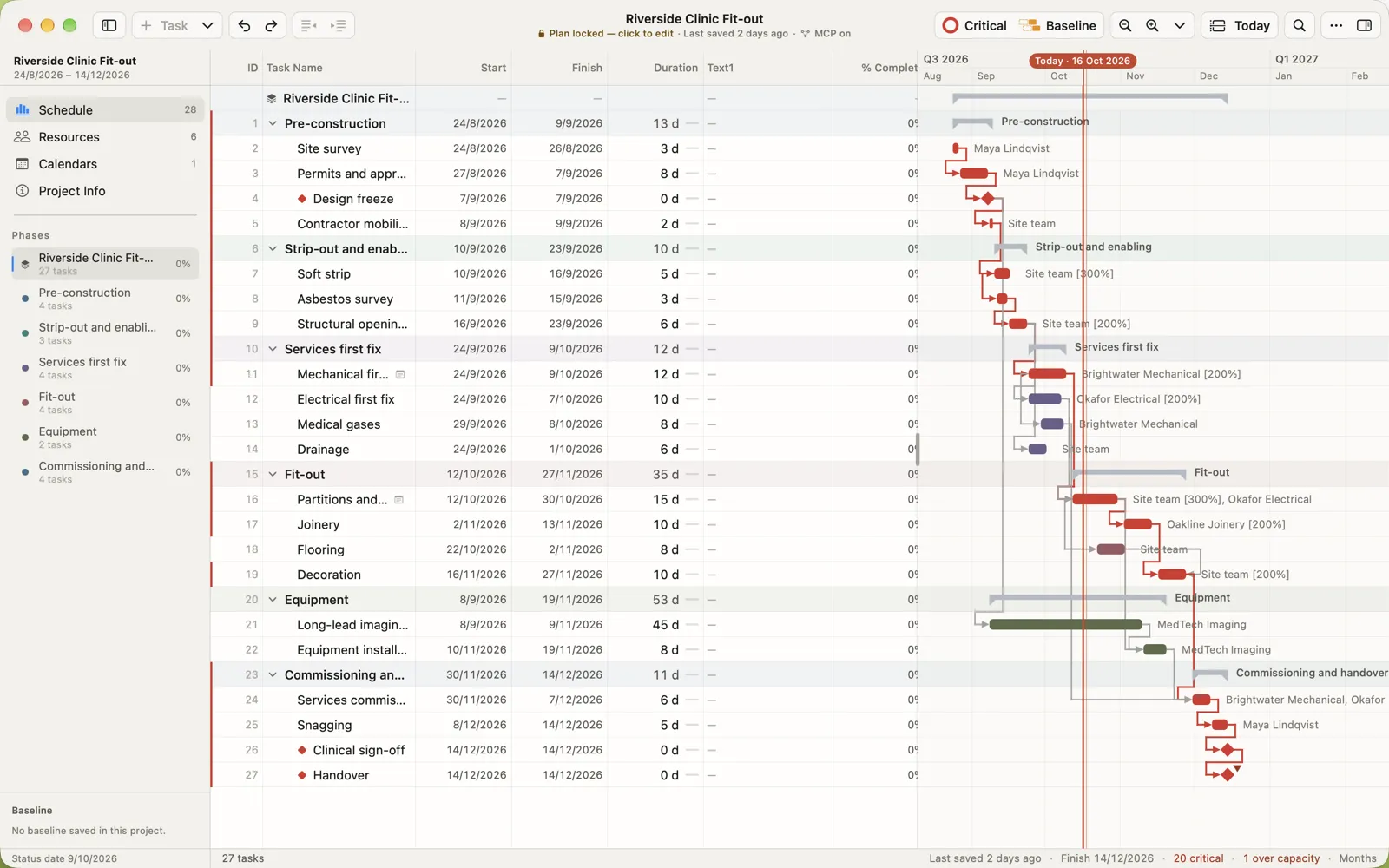
Your agent at work
Ask in plain words. Watch the plan move.
Tell your agent what changed on site. It looks the tasks up, makes the edit through MPP Studio, and the schedule recalculates as if you had typed it yourself.
- Claude
- ChatGPT
- Codex
- Gemini CLI
- Cursor
- VS Code
- Any MCP agent
- “Which critical tasks finish in December, and who’s on them?”
- “Add three days of snagging after Decoration and link it to Handover.”
- “Joinery needs five more days. Update it and tell me the new handover date.”
Why MCP
Why MCP, and not AI built in
Many apps now build AI in: they send your data to the AI company they picked, and ask you to trust it. We chose not to. MPP Studio has no AI of its own and never sends your plans to an AI provider. AI is something you opt in to, when you need it.
That is why it works through MCP, an open standard for connecting AI agents to apps. Your organisation can use the AI provider it has already approved for business data, under the agreement it already has, and that provider can be the only one that ever sees a plan. Or it can use none at all.
Set up
Connect your agent in three steps
Turn it on
In MPP Studio on your Mac, iPad or the web, open Settings → AI Agents and switch it on. It’s off until you do. On iPad and the web it answers while MPP Studio is open.
Add it to your agent
On the web, add
https://api.mppstudio.com/mcpto Claude or ChatGPT and sign in once. In the apps, copy the address and access token into your agent’s MCP settings, on your local network.Ask
Open a plan and ask your agent about it, or ask it to change something. Every edit lands in the open plan.
The tools
Twelve tools for reading and editing the plan
Read
get_projectTitle, dates, status date, progress, and whether the plan is lockedlist_tasksEvery task in outline order, with dates, links, resources and whether it’s criticalget_taskOne task in full, notes includedlist_resourcesPeople, equipment and materials, and how many tasks each one haslist_calendarsWorking hours, shifts and the public holidays each calendar follows
Edit
add_taskAdd a task where it belongs in the outlineupdate_taskChange the name, start, duration, deadline, progress, resources or notesdelete_taskRemove a task with its subtasks, links and assignmentslink_tasksunlink_tasksFinish-to-start, start-to-start and the rest, with lag or leadindent_taskoutdent_taskRestructure the outline
Safe by design
You stay in charge of the plan
Every change can be undone
Each edit the agent makes is one step in the undo history, named “Agent: …”, so you can see it and take it back.
The lock still holds
On a locked plan the agent can record progress, like you can, but can’t move the agreed baseline programme.
Your choice of route
From the Mac and iPad apps, your agent talks to the app on your device and nothing goes through our servers. On the web, it passes through our server, unencrypted and never stored, while MPP Studio is open.
Once you connect an agent, its rules apply
MPP Studio’s end-to-end encryption protects shared plans on their way to and inside MPP Studio Cloud. An AI agent is different: once you turn on the MCP server and connect one, the agent reads the plan as plain text, as you see it on screen, and usually sends what it reads to its AI provider to work on it.
On the web, an agent in the cloud such as Claude or ChatGPT reaches MPP Studio through our server: while it is connected, what it reads and changes passes through our server unencrypted on its way to the agent. We don’t store or log it, and closing MPP Studio or turning AI Agents off ends it. You agree to this when you turn AI Agents on.
From that point, the data is handled under the agent’s and the AI provider’s terms, not ours. We can’t see, control or guarantee what an agent or its provider does with it: whether it is stored, for how long, in which country, or whether it is used to train models.
Turning on the MCP server, and choosing which agent to connect, is your decision and your responsibility. Before you do:
- Check that your organisation allows the agent and AI provider for the plans you open
- Remember that a shared plan holds other people’s work and names too
- In the apps, keep the access token private: whoever has it can read and edit the open plan
- Turn AI Agents off, renew the token or remove the agent when you’re done
Questions people ask
More in the FAQ.
Do I have to use AI?
No. The MCP server is off until you turn it on in Settings → AI Agents, and MPP Studio works the same without it.
Does my plan pass through MPP Studio’s servers?
From the Mac and iPad apps, no: your agent talks straight to the app over your network. On the web, yes, while an agent is connected: what it reads and changes passes through our server unencrypted on its way to the agent, and is never stored or logged. What the agent sends to its AI provider is handled under that provider’s terms. Your responsibility
Which agents work?
Can I undo what the agent did?
Yes. Every change the agent makes is one step in the app’s undo history, named “Agent:” and what it did.
Does it work in the browser version?
Why not build AI into the app?
So nobody has AI forced on them, and nobody has to trust an AI company we chose. AI in MPP Studio is opt-in, and it works with the provider your organisation has approved for business data. Why MCP
Which plan includes it?
MCP Features come with Solo Pro and Team Pro. Compare plans
Try MPP Studio now, free
The web beta is open, with Team Pro free for everyone. Make an account, open any .mpp in your browser, share plans and invite your team. You also get an email the day the Mac and iPad apps launch.
Free, with Team Pro until 30 days after launch. Beta Terms